
Automatic sign-in and MFA codes for every Government Gateway account.
Pick the client, office or team, and My1Login signs you in to the right Government Gateway account, access code included. Passwords stay hidden, the code never depends on one person's phone, and every sign-in is recorded.
- Agent Services and legacy agent accounts
- Works from the Government Gateway page itself
- Every sign-in in the audit trail
 Government Gateway8 accounts
- CFCardiff officeAgent Services Account · Tax teamCode generated + filled
- CFCardiff office: payrollPAYE for agents · Payroll teamCode generated + filled
- BRBristol officeAgent Services Account · Tax teamCode generated + filled
- LDLeeds officeLegacy agent account · Tax teamCode generated + filled
- ABAshworth Builders LtdBusiness account · Client · VATCode generated + filled
- GHGreenhill DentalBusiness account · Client · Corporation TaxCode generated + filled
- NWNorthwind LogisticsBusiness account · Client · PAYECode generated + filled
- HQHead office: practiceAgent Services Account · PartnersCode generated + filled
What's changing: HMRC is adding multi-factor authentication to agent accounts.
Agent Services Accounts and legacy agent accounts start asking for a one-time access code between 28 September and 15 October 2026, from an authenticator app or a registered device. For a shared account, that means one person's phone stands between your whole team and HMRC. What businesses and accountants need to know
Choose the account on the Government Gateway page, or from your My1Login vault.
Either way, it's My1Login that signs you in: it fills in the user ID and the hidden password, and generates and fills in the access code. Your team doesn't have to change how it works.
Choose the account where you sign in.
- Open the Government Gateway sign-in page. My1Login lists the Government Gateway user IDs you can use, under the user ID field.
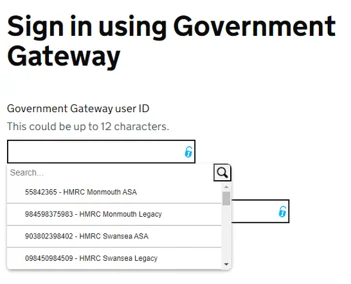
- Choose the user ID you need. My1Login signs you in and fills in the access code.
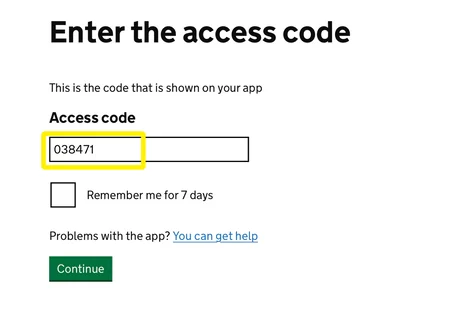
You're signed in, with the access code generated and entered if HMRC asks for one.
Search your vault for the client or office.
- Open your My1Login vault and type the office, region or client name. Searching “Cardiff” shows only the accounts with Cardiff in their title or tags.
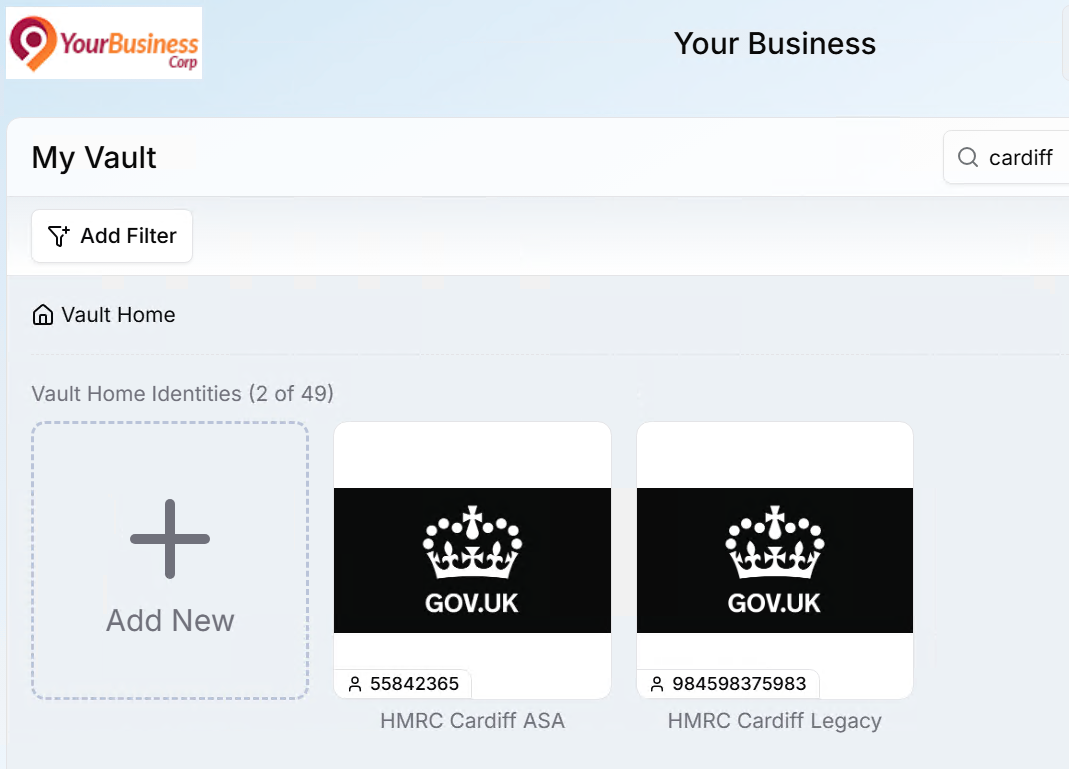
- Click the account you need. My1Login signs you in to Government Gateway.
You're signed in, with the access code generated and entered if HMRC asks for one.
Government Gateway trips up ordinary password managers.
Saving a Government Gateway password in a browser or a personal password manager doesn't solve the problems shared accounts create, and some of them get worse.
Saved links lead to an error page.
Government Gateway's sign-in page only opens from another page on the service, so the link most password managers save shows an error. My1Login opens the account properly, in one click.
The code goes to one person.
A text or authenticator code reaches one phone. My1Login generates the code itself and fills it in, for whoever is allowed to use the account.
One password change locks everyone out.
When someone changes a shared password and the rest of the team still has the old one, the account can lock for everyone. With My1Login nobody types it, so everyone always uses the current one.
Nobody knows who signed in.
A spreadsheet of logins can't tell you who used which account. My1Login records every sign-in by person, account and time.
What My1Login does that most password managers don't.
Logins learnt automatically
My1Login learns Government Gateway logins as people sign in, so onboarding needs no manual set-up and you can see which accounts exist, including after an acquisition.
Signed in, no extra clicks
User ID, password and access code are filled in and submitted for people. No extra clicks, and no hunting for the code.
Codes shared with a team
One account, one code, many people. My1Login generates the code and fills it in for everyone allowed to use the account, so it never depends on one person's phone. Many password managers can't share codes at all.
"Show password" blocked
My1Login stops the "show password" button on other sites' sign-in pages, so a password people never see stays that way, and leavers can't take it with them.
Hidden when shared
Share a Government Gateway account from IT to a team, or between colleagues, without anyone seeing the password. Leavers can't take what they never saw.
Tax software that files through Government Gateway
Desktop apps such as Sage and AlphaTax ask for Government Gateway logins to post filings. My1Login fills those in too, so nobody needs to copy the password.
Evidence for compliance audits
See which apps and client portals ask your team for one-time codes, and every Government Gateway sign-in by person and time, for compliance reviews.
Phishing-proof passwords
Passwords are long, random and changed by policy, and hidden from your team, so there's nothing for a fake HMRC page to collect.
Set up once by IT. Used every day by your team.
Adding a Government Gateway account takes minutes, and it's done once for everyone who needs it. Add accounts by hand, or let My1Login discover and learn the Government Gateway sign-in details already in use across your firm.
Add the account
IT adds the Government Gateway user ID and password to My1Login, and tags it by office, client or team so it's easy to find.
Connect the access code
Set the account's 2-step verification to use an authenticator app and add it to My1Login, which then generates the codes and fills them in.
Share it with the right people
Choose who can use it, from a single person to a whole office, and whether they can only sign in or can also see, change or share it.
A record of every Government Gateway sign-in.
See who opened which client's account and when, filter by person, account or office, and export it for a client, your insurer or your professional body.
How the audit trail works| Time | Who | Account | Code |
|---|---|---|---|
| 09:14 | R. Shah | Cardiff office | Generated + filled |
| 09:02 | L. Evans | Ashworth Builders Ltd | Generated + filled |
| 08:47 | M. Okafor | Cardiff office: payroll | Generated + filled |
| 08:31 | J. Byrne | Leeds office | Generated + filled |
Government Gateway questions
Which Government Gateway accounts does it work with?
Any account your firm signs in to through Government Gateway: Agent Services Accounts, legacy agent accounts, and clients' business accounts where you have their permission to use them. It also complements HMRC's move to GOV.UK One Login.
Do we still need the phone the code goes to?
No. Once the account uses an authenticator app with My1Login, My1Login generates the code and enters it for whoever is signing in.
Can someone see the Government Gateway password?
Only if you let them. You can hide passwords so people can sign in without ever seeing them, which also means leavers can't use them afterwards.
Can we limit an account to one office or team?
Yes. Share each account with the people, teams or offices that need it. Everyone else won't see it in their list.
Does it work on the Government Gateway website itself?
Yes. Your team can choose the account from the list My1Login shows on the Government Gateway sign-in page, or search for it in their My1Login vault.
Does it work with Xero, payroll and banking too?
Yes. The same one-click sign-in, hidden passwords and one-time codes work for your other accountancy, payroll and banking systems. See everything for accountancy firms
Bring your busiest Government Gateway account to a 5-minute demo.
We'll share it with a team, hide its password and sign in with the one-time code generated and filled in for you. Then we'll show you the log of who used it.
- 5 minutes, on your own apps
- A specialist replies within one working day
- No obligation